




Terms
- Tenants are the people who receive an invoice.
- Apartments are the billing units of your property. Each apartment has a meter and at most one current tenant.
For a vZEV, apartments are called Buildings and tenants are called Participants. Everything in this chapter applies to both variants.
Create a tenant
- Open Tenants and click Create new.
- Enter the first name and last name. Salutation, email, phone and notes are optional.
- Choose the Invoice language. The invoice and the QR payment part are created in this language (German, English, French or Italian).
- Click Save.
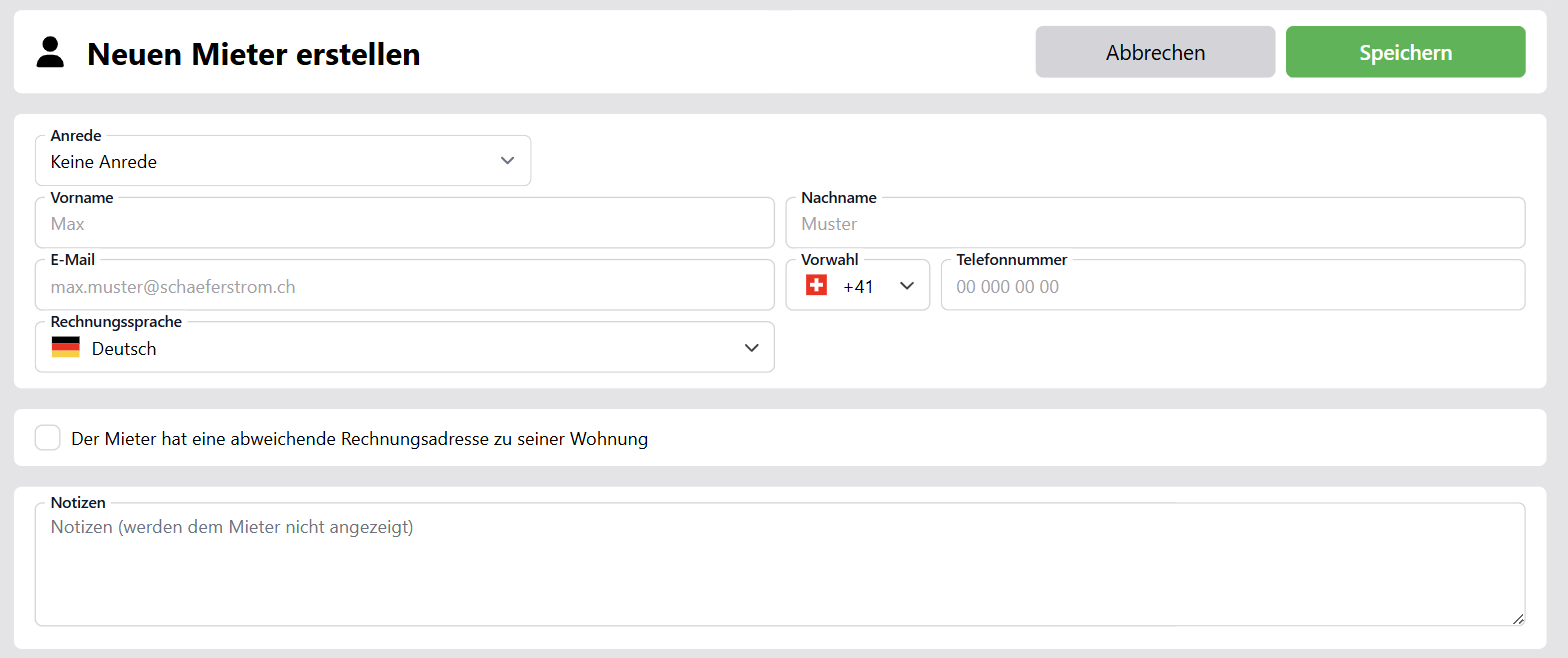
The Notes are only visible to you and do not appear on the invoice.
Different billing address
Normally the invoice goes to the address of the property. If the tenant lives elsewhere, for example for a holiday apartment, enable The tenant has an address that differs from their apartment and enter the address.
View a tenant
In a tenant's detail view you can see all their invoices along with the related credit notes and payments.
Create an apartment
- Open Apartments and click Create new.
- Enter a Name, for example «Upper floor, left side». The description is optional.
- Under Current tenant, choose a tenant or Vacant. Only tenants who are not yet assigned to another apartment are available.
- Click Save.
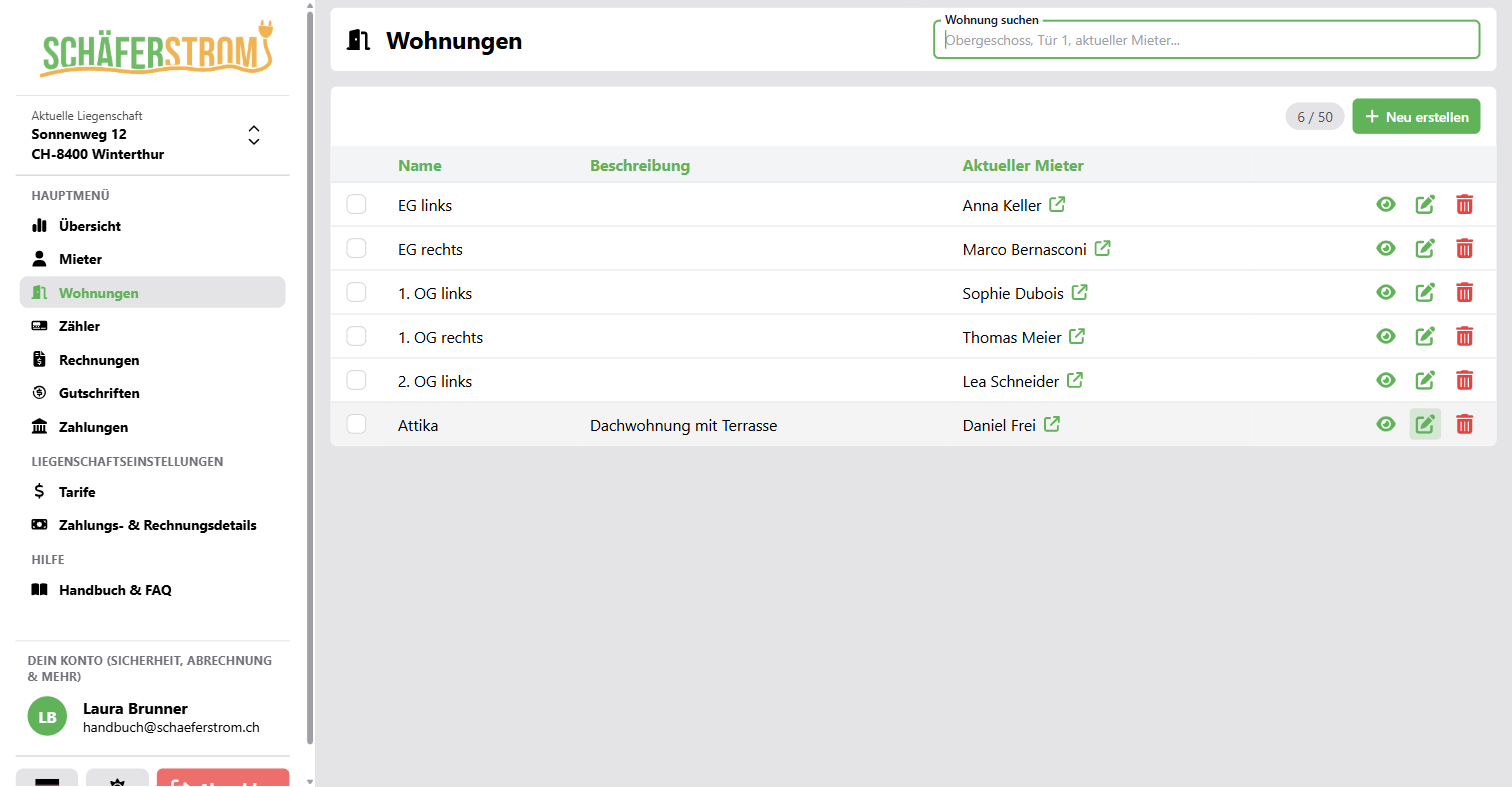
How many apartments you can create per property depends on your plan.
Change the tenant
Once an apartment is rented out, the tenant can no longer be changed directly in the form. This keeps the billing cleanly separated. For a change, use the Tenant change button. The chapter Tenant change explains how it works.
Under Tenant history you can see who rented the apartment and when.
Delete
- Delete tenant: the tenant is removed and their apartment is then vacant. Existing invoices are kept.
- Delete apartment: the current tenancy is ended and the apartment is removed.
Search
In both lists you can find entries using the search field. For tenants you search by name, email, phone or address, for apartments by name, description or current tenant.