




Create a credit note
You always create credit notes for an existing invoice.
- Open Invoices and choose Create credit note in the invoice's menu.
- Optionally enter a Reason.
- Enter at least one line item with title, description, quantity and price.
- Click Create credit note.
SchäferStrom creates a PDF with its own consecutive credit note number. Credit notes are only possible for invoices that are not archived.
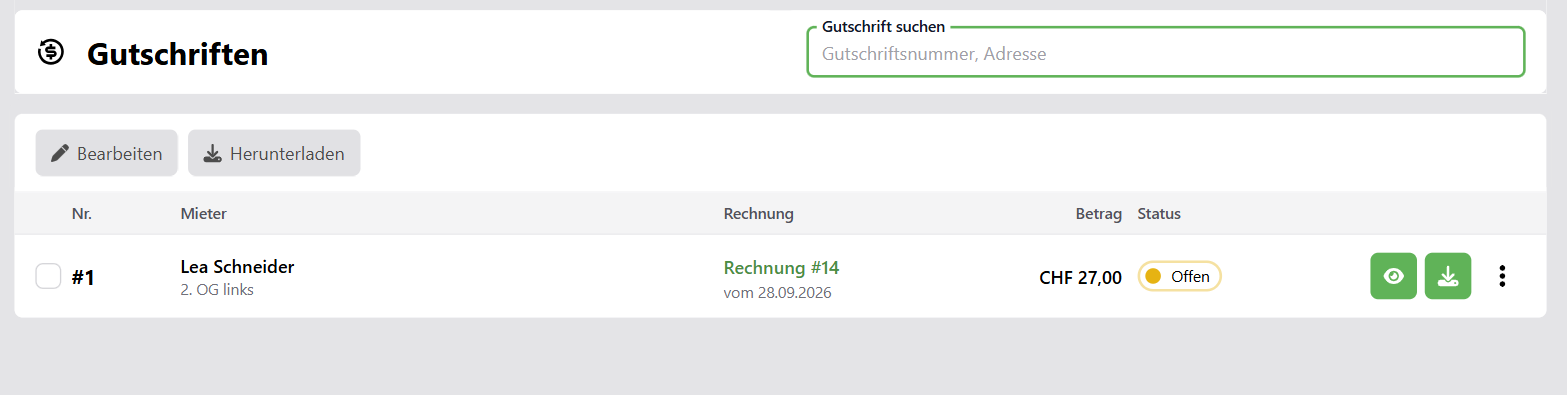
Overpayment refund
If a tenant has paid more than they owed, the invoice has the status Overpaid. If you create a credit note for it, the form is already filled in with «Overpayment refund» and the overpaid amount. In the list, the document appears as a Refund.
Credit note status
| Status | Meaning |
|---|---|
| Pending, Processing | The PDF is being created. |
| Error | The PDF could not be created. |
| Open | The credit note has been created, the amount has not yet been paid out. |
| Paid | The amount has been paid out to the tenant. |
You switch between Open and Paid via Change status, or for several credit notes at once via Edit.
Effect on the invoice
- An open credit note reduces the amount the tenant still owes. The credit note is therefore offset against the invoice.
- A paid credit note was paid out separately and no longer reduces the open amount.
- A refund only takes effect once it has been paid. It then offsets the overpayment.
The invoice status is recalculated automatically with every change.
Edit, archive and delete
- With Edit credit note you change the reason, address, apartment and line items. Save & regenerate PDF updates the PDF.
- Like invoices, credit notes can be downloaded, printed, archived and permanently deleted from the archive.
- You download several credit notes as a ZIP file with Download selection.