




Create a meter
- Open Meters and click Create new.
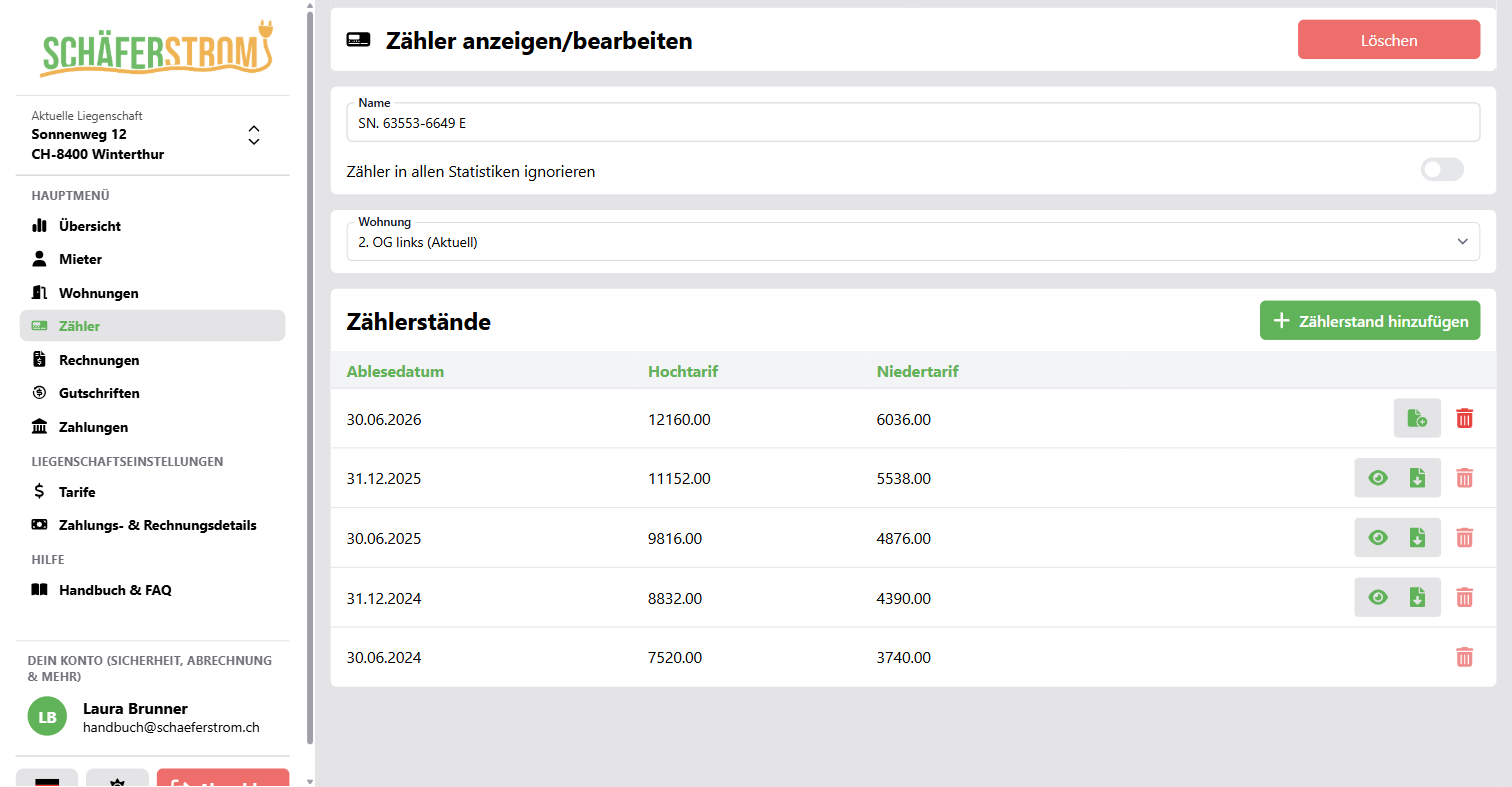
- Enter the meter's serial number as the Name, for example «SN. 63553-6645 A».
- Choose the Apartment the meter belongs to.
- If needed, enable Ignore meter in all statistics, for example for a meter for the common lighting that should not be part of the consumption analysis.
The name also serves as the key for the CSV import. So use a unique name for each meter.
Enter a meter reading
- Open the meter and click Add meter reading.
- Choose single tariff or Dual tariff (peak/off-peak) and enter the reading.
- Choose the Reading date.
- For vZEV, you also enter the Solar self-consumption for this building in kWh for the period.
You then have several options for saving:
- Save: the reading is saved and the window stays open.
- Save and close
- Save and create invoice: the invoice is created directly.
- Save and add line items: you add further line items to the invoice first.
Rules for meter readings
- The reading date must not be in the future and must be after the last reading.
- A new reading must not be lower than the previous one.
- Numbers with up to two decimal places are allowed.
The first meter reading
The first meter reading of a meter is the starting value. It is not billed, but serves as the starting point for the first invoice. So it is best to enter it when setting up or installing the meter.
From the second reading onwards, the table shows either the related invoice or the Create invoice button for each reading.
Delete a meter reading
You cannot delete a meter reading that has already been billed. The starting value can only be deleted as long as it is the only reading.
Import meter readings
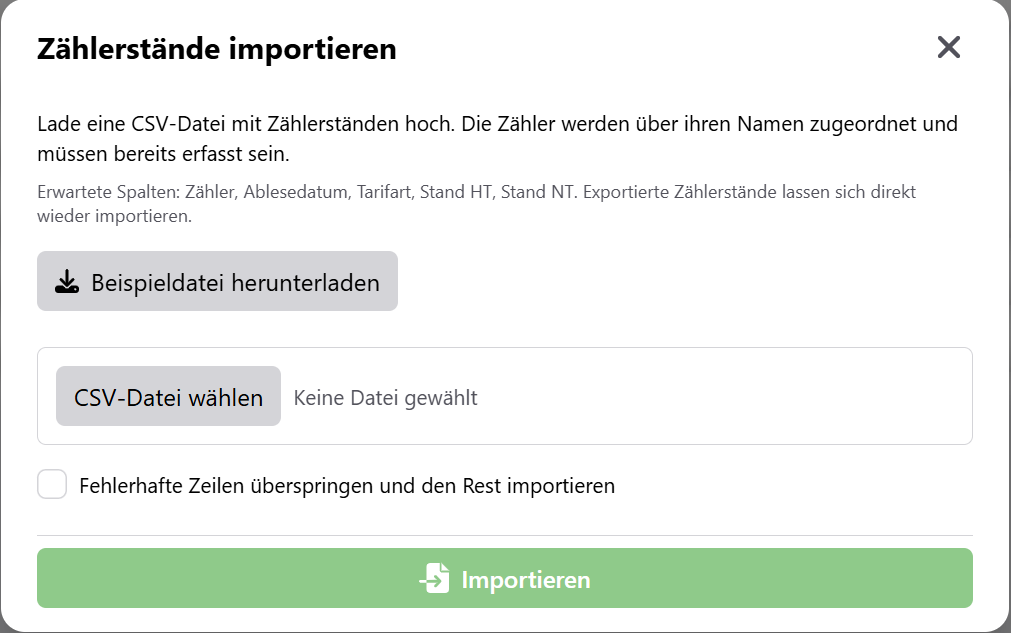
If you need to enter many readings at once, the CSV import is faster.
- Under Meters, click Import meter readings.
- Use Download example file to download a template. It already contains one row per meter.
- Fill in the file in Excel or another program and save it as CSV.
- Choose the file and click Import.
File structure
| Column | Content |
|---|---|
| Meter | Name of the meter, exactly as entered in SchäferStrom |
| Reading date | for example 31.12.2025 or 2025-12-31 |
| Tariff type | «Single tariff» or «Dual tariff (peak/off-peak)» |
| Reading HT | reading for the single tariff or high tariff |
| Reading NT | only for the dual tariff |
Good to know:
- The separator (semicolon, comma or tab) is detected automatically.
- Numbers such as
1'234.50or1234,5are understood. - The file may be at most 2 MB in size and contain 2000 rows.
- The same rules apply as for manual entry.
Invalid rows
By default, nothing is imported as soon as a row contains an error. The result shows you which row does not fit and why. Correct the file and upload it again.
If you enable Skip invalid rows and import the rest, all valid rows are imported and only the invalid ones are left out.
Export meter readings
With Export meter readings as CSV you download all readings of the property, including the invoice number with which a reading was billed. The exported file can be imported again directly.
Reading reminder
SchäferStrom reminds you by email on 30 June and 31 December to read the meters. You can turn this reminder off under Account > Notifications > Reading date.