




Requirements
Before you create your first invoice, you need:
- a tariff
- complete payment and invoice details
- a tenant in the meter's apartment
- at least two meter readings: the starting value and a new reading
Create a single invoice
- Open the meter and enter the new reading.
- Click Save and create invoice, or Create invoice for an existing reading.
- If you want to bill additional line items, for example a handling fee, choose Save and add line items. Up to 8 additional line items are possible per invoice.
SchäferStrom fills in the invoice automatically:
- consecutive invoice number within the workspace and invoice date
- recipient with salutation in the tenant's invoice language
- billing period from the day after the last reading up to the reading date
- consumption at the current tariff (single tariff or HT and NT)
- for vZEV, the solar power at the solar tariff
- monthly fees multiplied by the number of months
- payment term, VAT and QR payment part according to your settings
Amounts are rounded to 5 Rappen per line.
Bulk billing
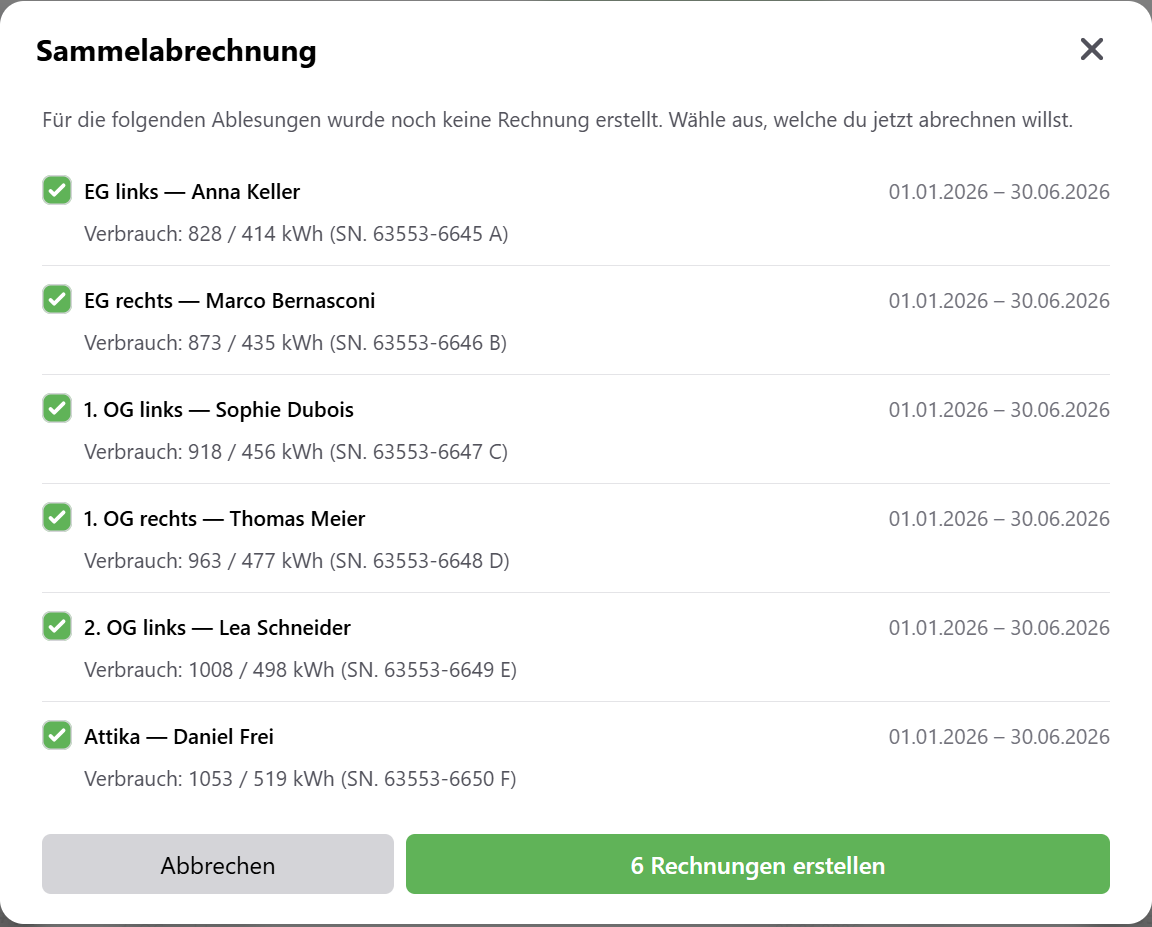
If you have entered new readings for several meters, you bill them in one go.
- Open Invoices and click Bulk billing. The number in the button shows how many readings have not yet been billed.
- Check the list with meter, apartment, tenant, period and consumption. For vZEV, you enter the solar power in kWh here.
- Select the rows you want and click Create invoices.
Invoice list
Under Invoices you see all invoices of the property, with the newest at the top. Using the search field, you can find invoices by number, tenant or address.
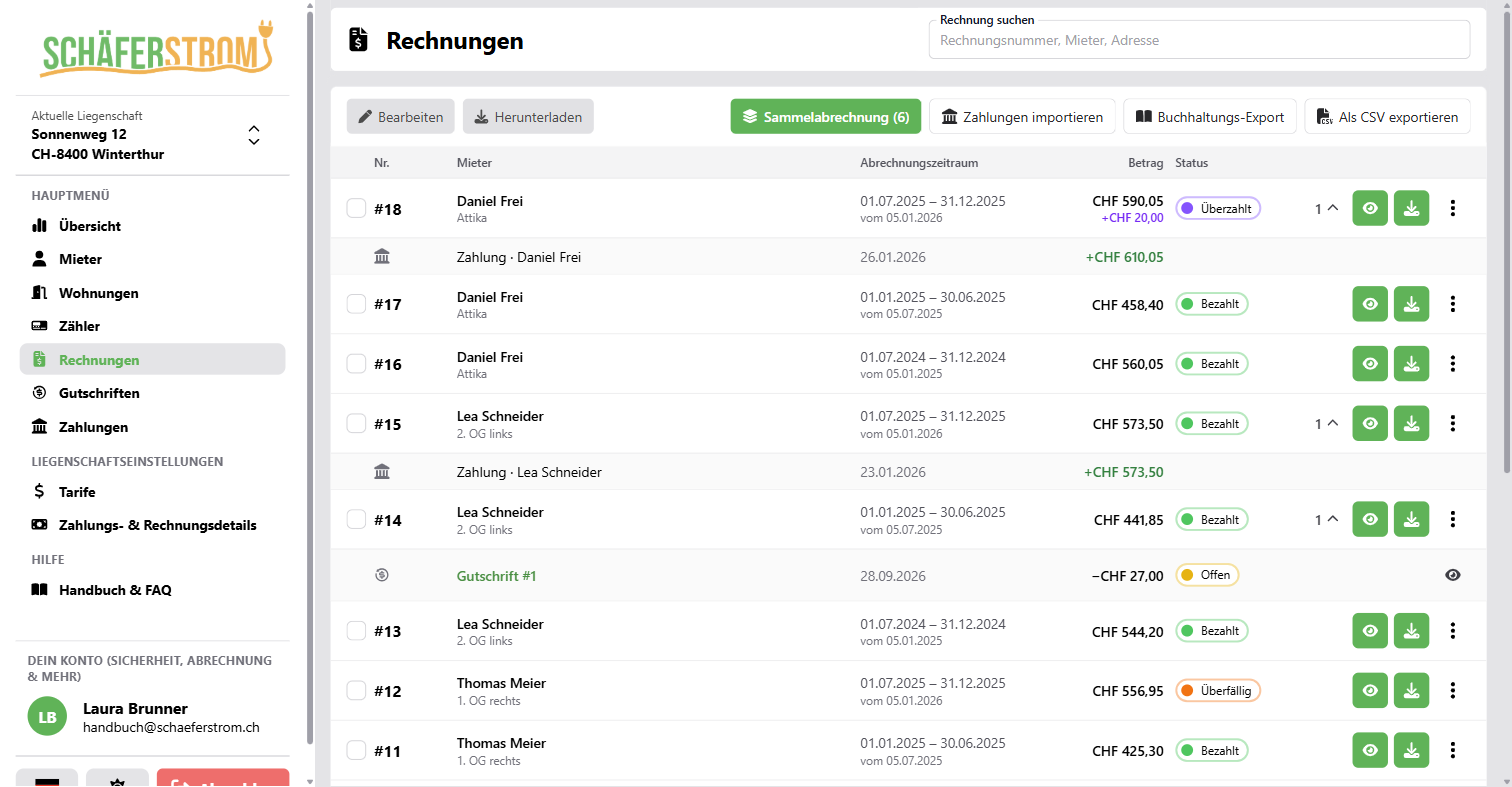
Clicking a row shows the linked credit notes and payments. From a row's menu you can view, download, print or edit the invoice, change its status, create a credit note or archive the invoice.
If you select several invoices, you can download them as a ZIP file with Download selection or set a new status for all of them at once with Edit.
Invoice status
| Status | Meaning |
|---|---|
| Pending, Processing | The PDF is being created. This usually takes only a few seconds. |
| Error | The PDF could not be created. Get in touch with us if the error persists. |
| Unpaid | The invoice has been created and not yet paid. |
| Overdue | Set by you when the payment term has expired. |
| Partially paid | Part of the amount has been received. |
| Paid | The full amount has been received. |
| Overpaid | More was paid than was owed. |
You set the statuses Unpaid, Overdue and Paid yourself via Change status. Partially paid, Paid and Overpaid result automatically from imported payments and credit notes. You cannot change such invoices manually.
Edit an invoice
With Edit invoice you correct the address, meter number, invoice date, billing period, apartment, consumption, fees and line items. After saving, the PDF is created again.
If an invoice has already been sent, a credit note is usually the cleaner way than changing it afterwards.
Reminders for overdue invoices
SchäferStrom reminds you of open invoices by email. Tenants do not receive automatic payment reminders.
- Invoices with the status Unpaid, Overdue or Partially paid whose payment term has expired are taken into account.
- The reminder comes 7, 14 and 30 days after the due date, so at most three times per invoice.
- The email lists all overdue invoices, grouped by property, with the due date and the open amount.
- Emails are sent Monday to Saturday at 14:00. If a stage is reached on a Sunday, the email arrives on Monday.
- The email goes to the owner of the workspace.
You can turn the reminders off under Account > Notifications > Overdue invoices.
Archive and delete
- Archive invoice moves the invoice to the archive. Using Show archive you can find it again and restore it with Restore from archive.
- Archived invoices stay available for at least 10 years, as the law requires.
- You cannot archive invoices for which money has already been received.
- Delete permanently removes an archived invoice together with its PDF irreversibly. This is only possible once no credit notes or payments are linked to it any more. You are then responsible for keeping records yourself.
Exports
With Export as CSV you download a list of all current invoices, for example for Excel. The chapter Accounting and exports explains how to transfer invoices to your accounting.