




Create an account
- Click Get started on the website or open the registration page directly.
- Enter your first name, last name, email address, language and a password with at least 8 characters.
- Accept the terms of use and complete the registration.
- You will receive an email with a confirmation link. Click it to activate your account. Also check your spam folder if the email does not arrive.
If you have received a partner code, you can enter it in the Partner code field during registration.
If someone invited you to a workspace, you register via the link in the invitation. In this case, no additional confirmation of your email address is needed. More on this in the chapter Team and roles.
Try the demo
With Try the demo on the website, you can try SchäferStrom without an account. In demo mode you can look around freely, but your entries are not saved.
Sign in
Sign in with your email address and password. With Keep me signed in you do not have to sign in again every time on this device. If you have enabled two-factor authentication, you then enter the code from your authenticator app (see Account and security).
After signing in, SchäferStrom takes you straight to where you can continue working:
- If you have several workspaces, you first select one.
- If the workspace has several properties, you then select the property.
- If there is exactly one property, you land directly on its overview.
Start a subscription
To work with properties, you need an active subscription. After your first sign-in, SchäferStrom shows you the available plans. You can find details in the chapter Subscription and plans.
Create a workspace and property
A Workspace groups your properties, for example for your property management or your company. Invoice numbers run consecutively per workspace across all properties.
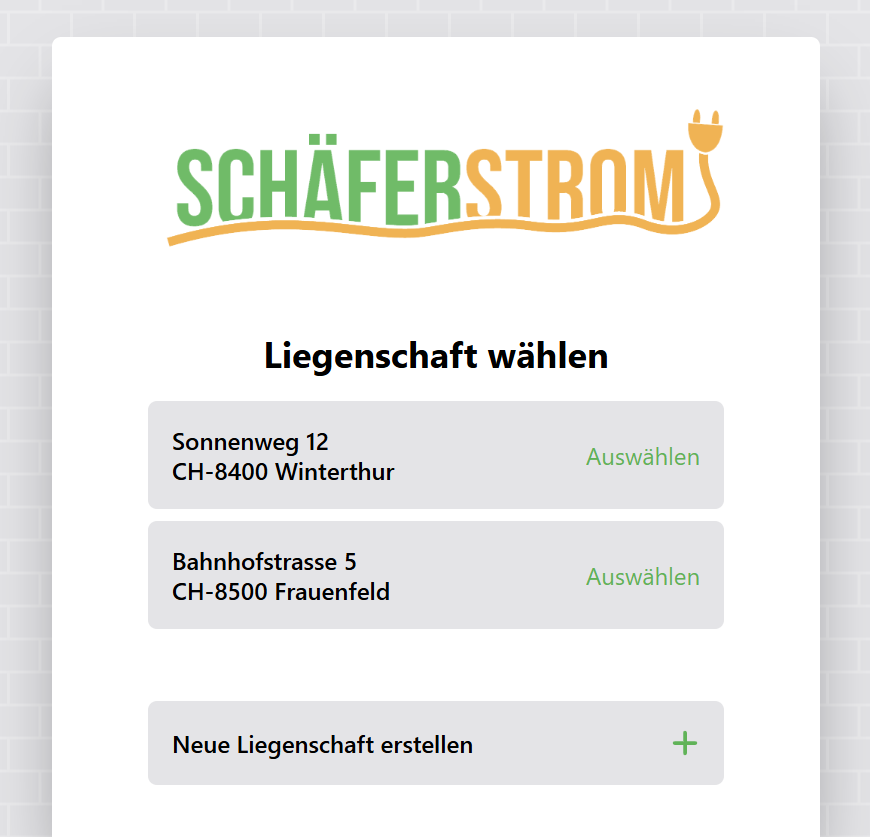
- Click Create new workspace and enter a name (at least 3 characters).
- Then click Create new property.
- Enter the street and number, postcode, town and country. The Additional field is optional.
The country determines the currency: properties in Switzerland bill in CHF and Rappen, all others in EUR and cents. The Swiss QR bill is only available for properties in CHF.
The app at a glance
On the left you will find the main menu. Everything you see there always relates to the currently selected property. At the top of the menu you can switch the property or the workspace.
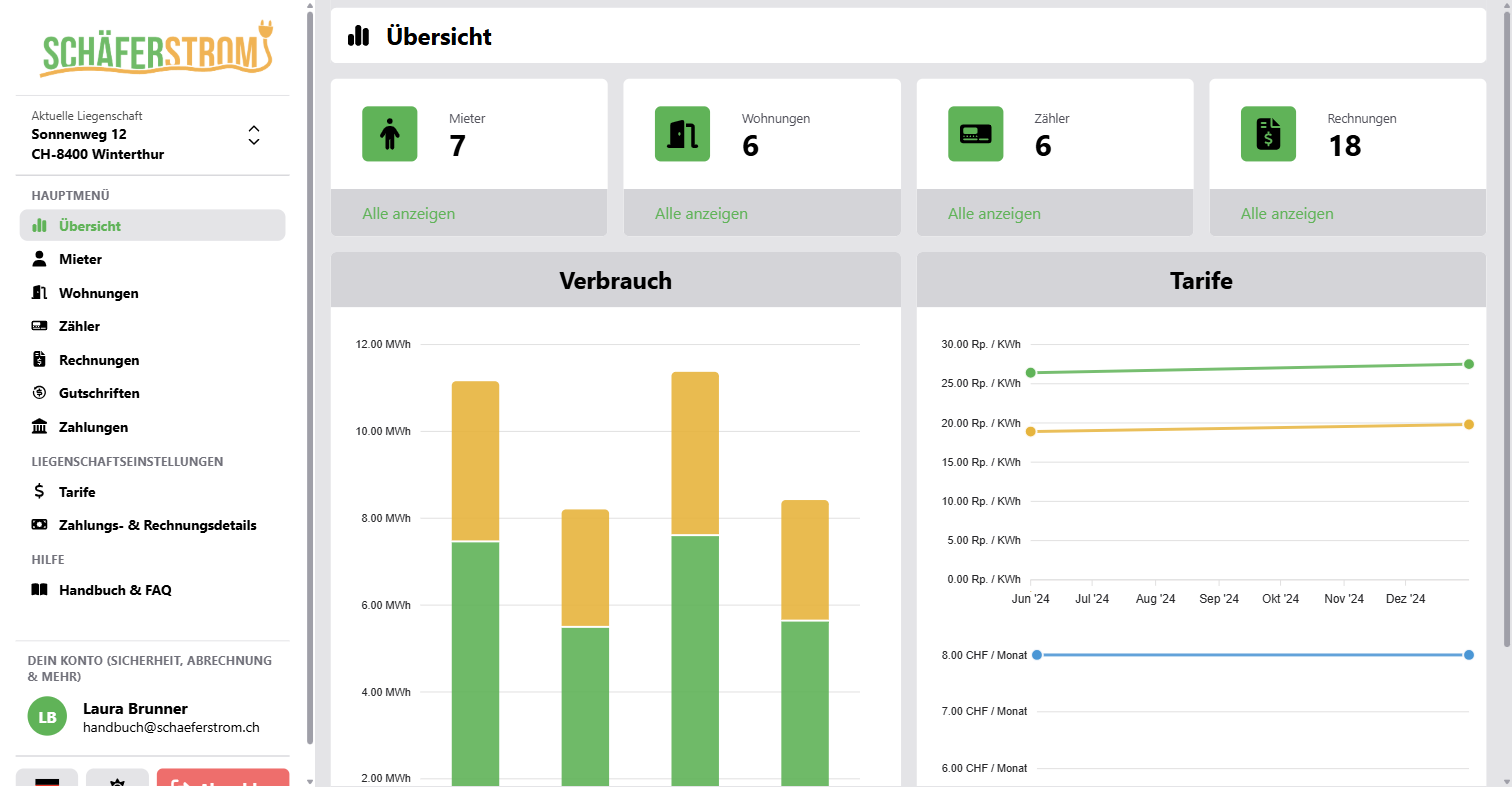
| Menu item | Purpose |
|---|---|
| Overview | Key figures, consumption per half-year and tariff history |
| Tenants | People who receive invoices |
| Apartments | Billing units to which tenants and meters are assigned |
| Meters | Meters and their meter readings |
| Invoices | All invoices, bulk billing and exports |
| Credit Notes | Credit notes and refunds for invoices |
| Payments | Payments imported from your bank account |
| Tariffs | Electricity tariffs, fees and type of community |
| Payment & Invoice details | Sender, bank details, QR bill and invoice design |
For a virtual community (vZEV), Apartments are called Buildings in the app and Tenants are called Participants. The functions are the same.
At the bottom of the menu you can reach your account, the language, the colour scheme (light, dark or automatic) and sign out.
Recommended order
To make sure your first invoice works right away, it is best to set up the property in this order:
- Set the tariffs
- Enter the payment and invoice details
- Create tenants and apartments
- Add meters and enter a first meter reading as the starting value
- At the next reading, enter the new reading and create the invoice
Guided tour
When you first start, a short tour shows you the most important menu items. You can restart it at any time under Account > Help > Getting started.