




Accounting export
- Open Invoices and click Accounting export.
- Choose the Format.
- Choose the Document types you want to export.
- If needed, narrow down the Period. Without a period, all documents are exported.
- Click Export.
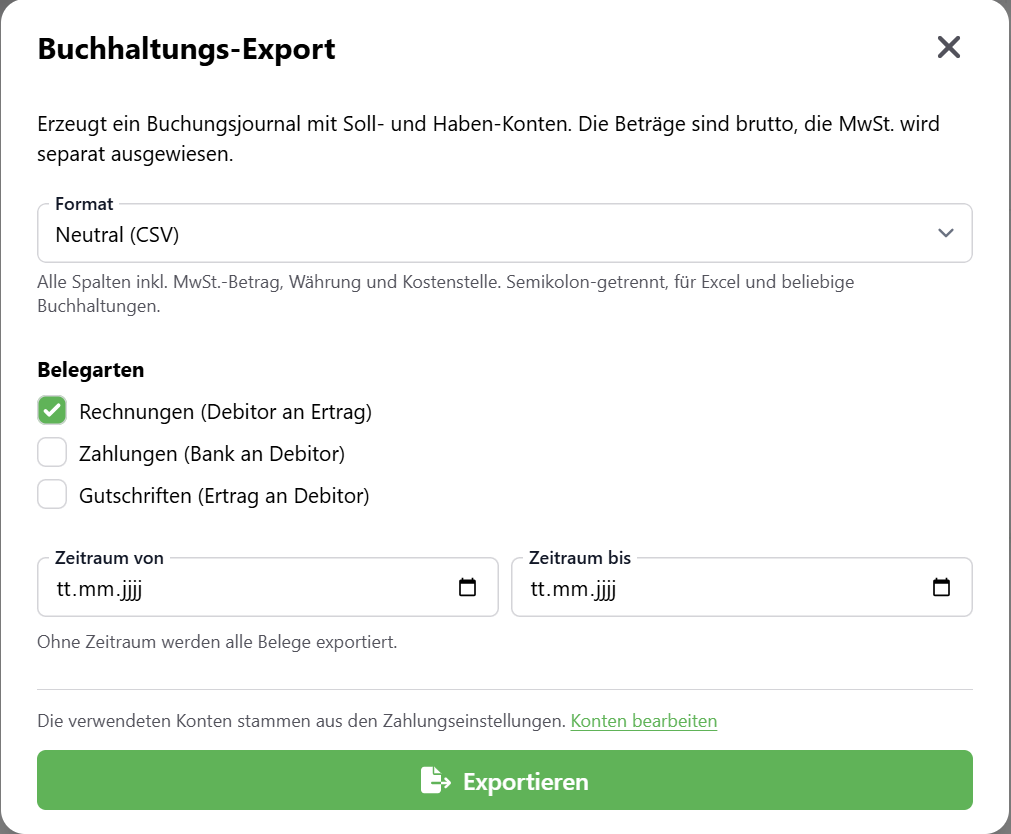
Formats
| Format | Suitable for |
|---|---|
| Neutral (CSV) | Excel and any accounting software. Contains all columns including VAT amount, currency and cost centre. |
| bexio (CSV) | Import tools for bexio, with the columns debit account, credit account and tax code. |
| Banana (tab-separated) | Banana Accounting, with dates in the format YYYY-MM-DD. |
Document types
- Invoices: debtor to revenue
- Payments: bank to debtor
- Credit notes: revenue to debtor
Amounts are gross, and VAT is reported separately. The VAT code is only exported if a UID has been entered in the payment details.
If you have set an invoice to Paid manually, the time of the status change counts as the booking date.
Set the accounts
You specify which accounts are used in the export in the payment and invoice details under Accounting. Empty fields use the default values of the Swiss SME chart of accounts, for example 1100 for debtors, 3400 for revenue and 1020 for the bank. Via Edit accounts in the export dialog you go straight there.
Other exports
- Invoices as CSV: under Invoices > Export as CSV you get a list of all current invoices with number, date, status, tenant, period, consumption and amount.
- Meter readings as CSV: under Meters > Export meter readings as CSV you get all readings. More on this in the chapter Meters and meter readings.
- PDFs: select several documents in the invoice or credit note list and download them as a ZIP file with Download selection.
All CSV files are separated by semicolons and open in Excel with correct umlauts.