




Overview
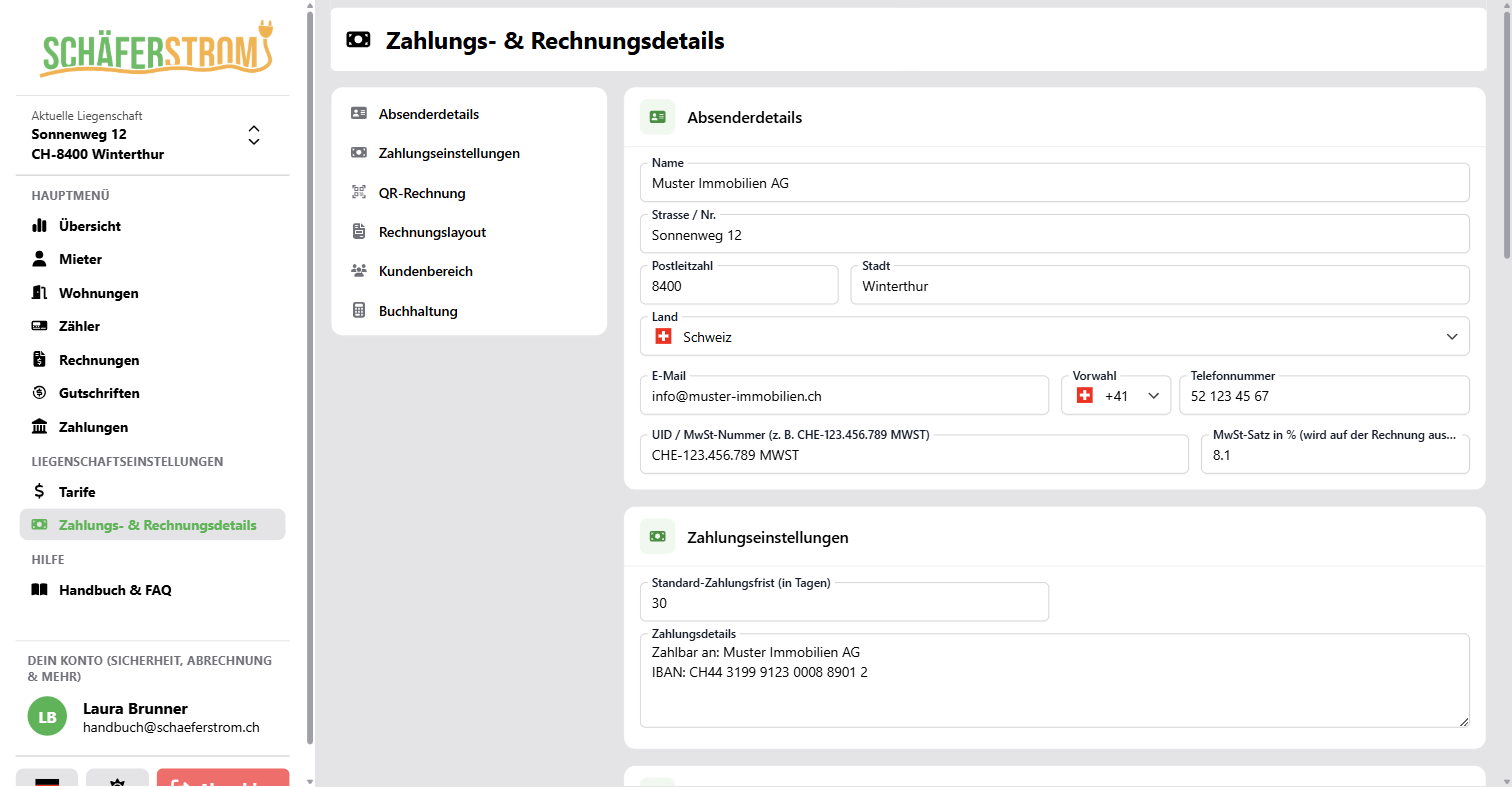
Open Payment & Invoice details in the menu under Property settings. The settings apply per property and can only be edited by administrators and the owner.
Without this information, you can create neither invoices nor credit notes.
Changes only apply to invoices you create afterwards. Invoices that have already been created are not adjusted.
Sender details
Name, street and number, postcode, town, country, email and phone appear as the sender on every invoice. All fields are mandatory.
VAT
- VAT number: optional, in the format
CHE-123.456.789 MWST. - VAT rate in %: shown on the invoice.
VAT only appears on the invoice if a UID has been entered.
Payment settings
- Default payment term (in days): number of days from the invoice date until the invoice is due. The term is also used for the reminders for overdue invoices.
- Payment details: free text for the payment information on the invoice, for example recipient, IBAN and BIC.
QR bill
With Enable QR bill, SchäferStrom automatically attaches a payment part with a Swiss QR code to every invoice. All you need is a valid IBAN.
- With a QR-IBAN, the invoice receives a QR reference.
- With a regular IBAN, the invoice receives a Creditor Reference (RF).
- The BESR-ID is optional and is assigned by your bank. It only works together with a QR-IBAN.
The QR bill is only available for properties in CHF. For automatic payment reconciliation, we recommend a QR-IBAN.
Invoice design
- Invoice layout: address on the left or right, to suit your window envelopes.
- Logo: no logo, the SchäferStrom logo or a custom logo. You upload a custom logo as a PNG or JPG of up to 2 MB. This feature is included in the PRO plan.
Customer area
If you enable Tenants have access to the customer area., a QR code and an access code appear on every new invoice. Your tenants can use them to view and download their invoices online. More on this in the chapter Customer area.
Accounting
Here you set the accounts for the accounting export: debtor account, bank account, electricity revenue account, revenue account for other positions, VAT code and optionally a cost centre. If you leave the fields empty, the default values of the Swiss SME chart of accounts apply.
Copy settings
If you have several properties in the same workspace, you can take over the payment settings of another property. To do so, click Copy, choose the property and confirm. Then check the details and save.